Beyond Reality. Beyond BIM. Welcome to AR360+ Smart Life with Your Digital Twin.
“The AR360Plus Revit Add-in Online Manual is designed to enhance your Revit experience and make BIM workflows easier. This interactive guide helps users quickly understand each function, apply them effectively, and maximize the full potential of AR360Plus tools for greater productivity.”
simplifies Revit Shared Parameter management — helping you organize, compare, and standardize project data with ease.
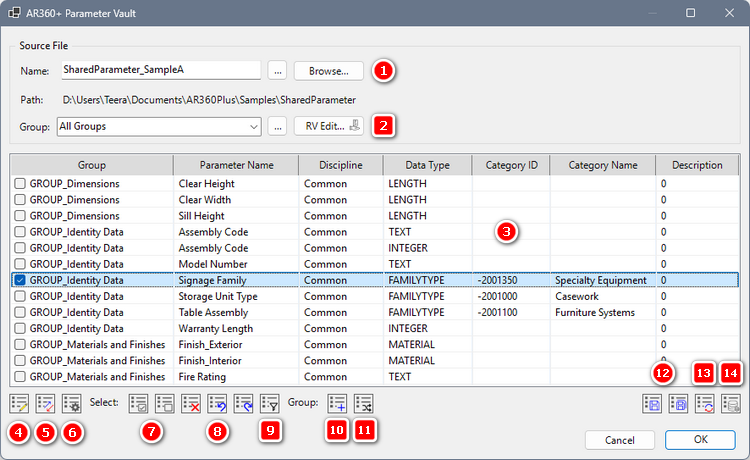
AR360+ Parameter Vault
(1) Source Manager – The Source Manager lets you open parameter source files, manage bookmarks, and set file paths for quick access.
(3) The Shared Parameter List displays – all parameter data in a table, making it easy to review, sort, and manage values at a glance.
(4) AR360+ Edit Parameter Values (5) AR360+ Compare Parameters (6) AR360+ Parameter Binder
(7) Select All Parameters – Checks every parameter in the list at once. Clear All Selections – Unchecks all parameters instantly for a fresh start.
(8) Delete Parameter – Removes selected parameters from the list. Undo – Restores the most recently deleted parameter. Redo – Reapplies the last undone deletion
(12) The Save and Save As – commands store your parameter changes securely. Every action is automatically backed up through the AR360+ Shared Parameter Backup History, allowing you to restore previous versions whenever needed.
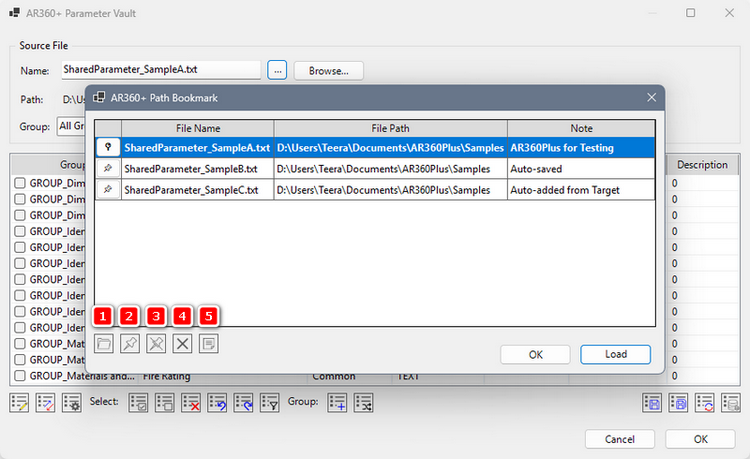
automatically tracks and saves the history of opened Shared Parameter files, including both file names and paths. Each new file is stored without duplicates, giving you quick and organized access every time.
AR360+ Path Bookmark
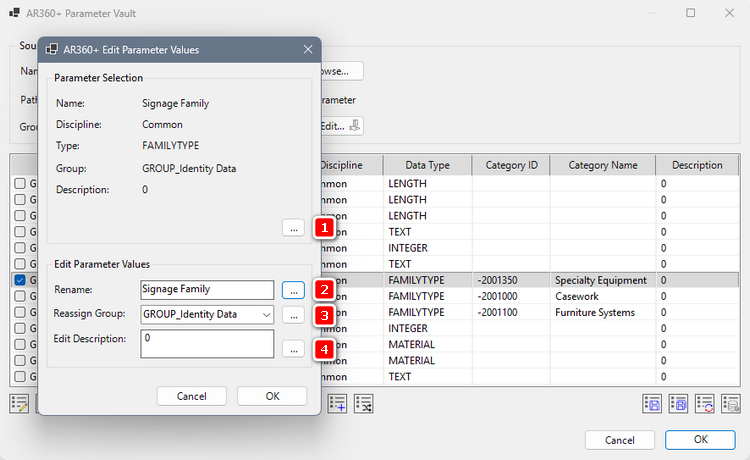
lets you view, rename, reassign groups, and update descriptions of Shared Parameters, ensuring accurate and consistent BIM data management.
AR360+ Edit Parameter Values
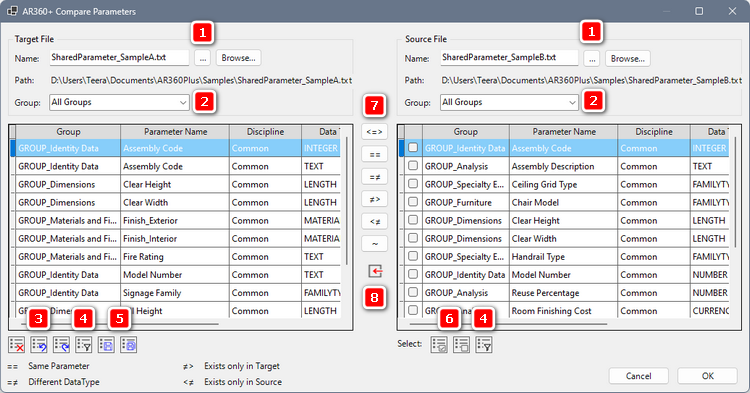
allows you to analyze, filter, and compare Shared Parameters across multiple files, helping you identify conflicts, duplicates, and missing data with ease.
AR360+ Compare Parameters
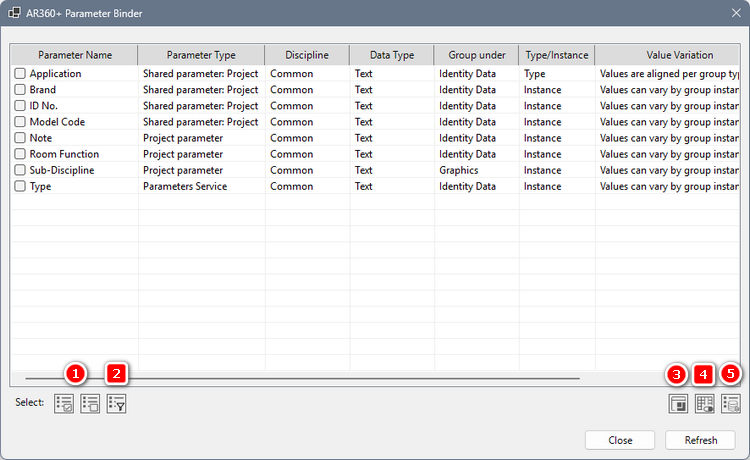
provides a centralized view of all Project and Shared Parameters in Revit, making it easier to inspect, manage, and validate parameter bindings across multiple categories. This tool displays parameter details such as name, type, discipline, data type, group, value variation, and associated categories, helping BIM managers ensure consistency and accuracy in parameter usage.
AR360+ Parameter Binder
(1) Select All Parameters – Checks every parameter in the list at once. Clear All Selections – Unchecks all parameters instantly for a fresh start.
(3) AR360+ Parameter Mapping (5) Revit Data Reference (See AR360+ Parameter Vault. (No.14))
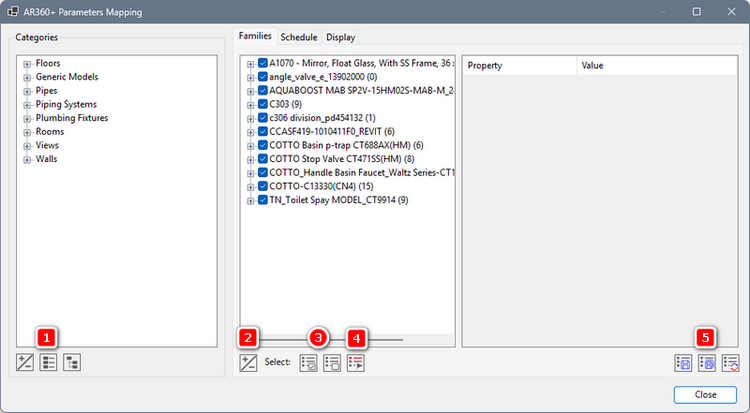
provides a centralized view to manage and map Revit family parameters. Users can browse categories, review family data, and edit property values, making parameter organization, classification, and data consistency more efficient across BIM projects.
AR360+ Parameter Mapping (Families Tab)
(3) Select All Parameters – Checks every parameter in the list at once. Clear All Selections – Unchecks all parameters instantly for a fresh start.
AR360+ Highlight Elements – Smart Tools for Managing Visual Emphasis in Revit Models
The Highlight Elements tools in AR360+ allow users to emphasize, save, and restore highlighted elements in Revit models. Whether applied automatically through Visual Override Tools or created manually, these functions ensure that your visual checks are consistently tracked, saved, and restored for future use.
AR360+ Parameter Mapping (Families Tab)
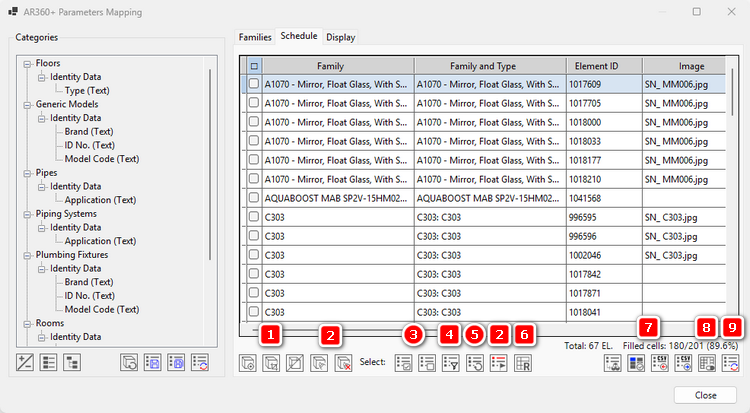
A powerful interface for managing and editing Family Type parameters directly within a table view. Users can input data with a simple double-click, filter parameters, and track progress using color-coded indicators. Integrated tools allow navigation to model elements, applying graphics overrides, and syncing updates back to Revit. With built-in CSV import/export, Schedule Tab streamlines data entry, validation, and collaboration, making BIM data management faster and more accurate.
AR360+ Parameter Mapping (Schedule Tab)
(3) Select All Parameters – Checks every parameter in the list at once. Clear All Selections – Unchecks all parameters instantly for a fresh start.
(5) The Reface button – refreshes the parameter table, ensuring that the displayed data is always up to date after edits, imports, or filtering. Use it to quickly reload and synchronize the view without reopening the tool.
A powerful interface for managing and editing Family Type parameters directly within a table view. Users can input data with a simple double-click, filter parameters, and track progress using color-coded indicators. Integrated tools allow navigation to model elements, applying graphics overrides, and syncing updates back to Revit. With built-in CSV import/export, Schedule Tab streamlines data entry, validation, and collaboration, making BIM data management faster and more accurate.
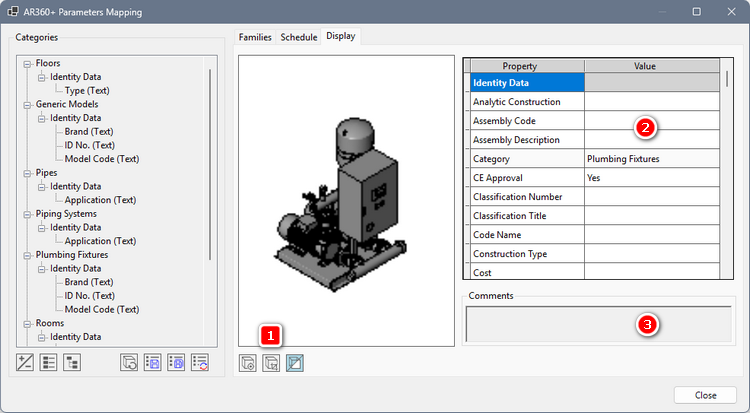
AR360+ Parameter Mapping (Display Tab)
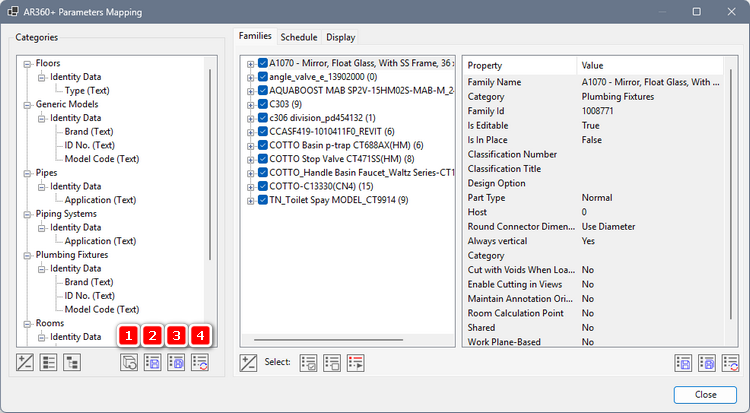
(2) Parameter Details – This section displays detailed parameter properties and values of the selected element.
Users can quickly review identity data, classification codes, categories, and other key attributes to ensure consistency and accuracy in BIM data management.
(3) Comments Panel – This panel shows the Comment field linked directly from the Revit element.
It provides additional notes or project-specific remarks that help clarify the context of the element, making collaboration and model review more efficient.
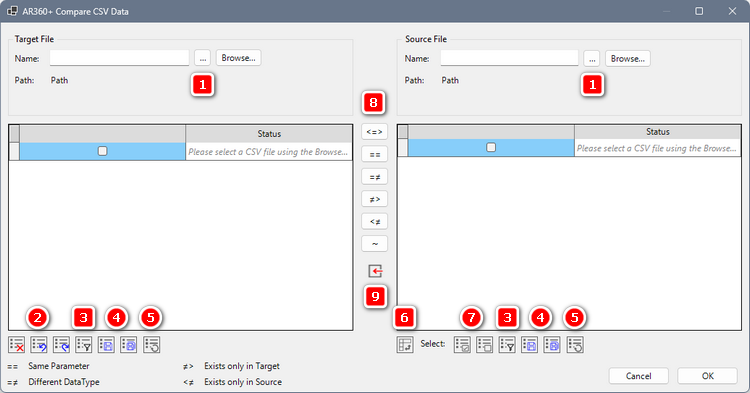
tool provides a built-in editor for reviewing, editing, and comparing CSV files without relying on external software. It is designed to prepare and validate CSV data before importing into the Parameter Mapping window, ensuring data accuracy and consistency in BIM workflows.
AR360+ Compare CSV Data
(2) Delete Parameter – Removes selected parameters from the list. Undo – Restores the most recently deleted parameter. Redo – Reapplies the last undone deletion
(4)The Save and Save As – Both the Source and Target panels include Save and Save As options to capture changes made directly within the parameter table. Users can edit or input values inline, then save updates immediately with system-generated filenames (Save) or define custom filenames for better project organization (Save As). This ensures that all CSV or parameter modifications are securely stored and easily retrievable.
(5)The Reface button – refreshes the parameter table, ensuring that the displayed data is always up to date after edits, imports, or filtering. Use it to quickly reload and synchronize the view without reopening the tool.
(7) Select All Parameters – Checks every parameter in the list at once. Clear All Selections – Unchecks all parameters instantly for a fresh start.